Problem Summary
When I go to the login screen, I enter my username and password and click “Log In”. I get redirected to a new page as if I successfully logged in, but get redirected to the home page instead. If I try again, the same thing happens.
Solutions
The issue seems to be with browsing history/cookies and that is what these solutions focus on.
+ Use incognito mode
+ Clear browsing history/cookies for Mac or Windows
+ Clear browsing history/cookies for LiveBy Local specifically
+ Try a different web browser i.e. Firefox, Safari or Chrome
How To Use Incognito Mode
If you are in a hurry and need to sign in without taking any other action, Incognito mode is the quickest route to success. Incognito mode ignores cookies set in previous sessions and essentially lets you “Start fresh”. To open incognito mode in…
Chrome
In the menu, click “File” and then “New Incognito Window”
Safari
In the menu, click “File” and then “New Private Window”
Microsoft Edge
In the menu, click “File” and then “New InPrivate Window”
Navigate to your LiveBy Local tool and sign in as normal. Keep in mind, this is only a temporary solution if you need quick access to the tool. To
How to clear browsing history/cookies on a Mac Operating System
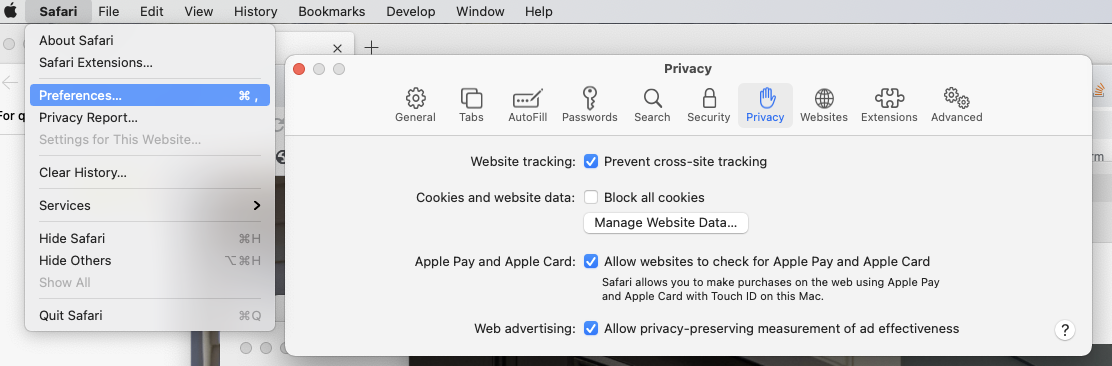
In the Safari app  on a Mac, choose Safari > Preferences, click Privacy, then do any of the following:
-
Prevent trackers from using cookies and website data to track you: Select “Prevent cross-site tracking.”
Cookies and website data are deleted unless you visit and interact with the trackers’ websites.
-
Always block cookies: Select “Block all cookies.”
Websites, third parties, and advertisers can’t store cookies and other data on your Mac. This may prevent some websites from working properly.
-
Always allow cookies: Deselect “Block all cookies.”
Websites, third parties, and advertisers can store cookies and other data on your Mac.
-
Remove stored cookies and data: Click Manage Website Data, select one or more websites, then click Remove or Remove All.
Removing the data may reduce tracking, but may also log you out of websites or change website behavior.
-
See which websites store cookies or data: Click Manage Website Data.
In the Chrome app  on a Mac
-
Open Google Chrome and in the menu bar click Chrome.
-
Select Clear Browsing Data.
-
Select a time range and choose what data to clear.
-
Click Clear data.
How to clear browsing history/cookies on a Windows Operating System:
In the
Safari app
for Windows
- Select Preferences under the Safari menu.
- Select the Privacy tab.
- Select Manage Website Data.
- Choose the site that placed the cookies in your browser and select Remove.
- Select Done when you've deleted all the cookies from Safari.
In the
Chrome app
for Windows
- On your computer, open Chrome.
- At the top right, click More .
- Click More tools. Clear browsing data.
- At the top, choose a time range. To delete everything, select All time.
- Next to "Cookies and other site data" and "Cached images and files," check the boxes.
- Click Clear data.
How to clear cookies for LiveBy Local specifically
Clearing all cookies is another way to resolve sign-in issues, but as many websites use cookies to remember preferences, it can be overkill. If you would like to remove cookies for only LiveBy Local, please do the following:
Chrome
1. Navigate to your LiveBy Local tool.
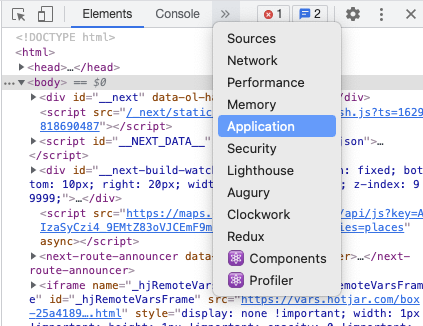
2. In the menu, click “View”, “Developer”, and then “Developer Tools”. This will open a panel in your browser. You can make this panel bigger by clicking on and dragging the panel’s border.
3. In the Developer Tools panel, find the “Application” tab.
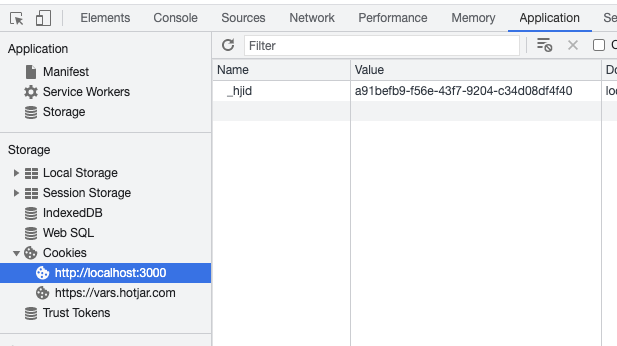
4. Expand Cookies and find the website you are having problems signing into. In the example below, we are using
https://localhost as an example.
5. Right-click and then click “Clear” on the button provided.
6. Refresh your screen and attempt to sign in again.
Safari
1. Navigate to your LiveBy Local tool.
2. In the menu, click “Safari” and then “Preferences”.
3. When preferences open, click “Privacy” and then the “Manage Website Data…” button.
4. Search for your LiveBy Local URL (in this case, we are using “localhost” as an example), highlight the entry, and then click the “Remove” button below.
5. Refresh your screen and attempt to sign in again.
Microsoft Edge
1. Navigate to your LiveBy Local tool.
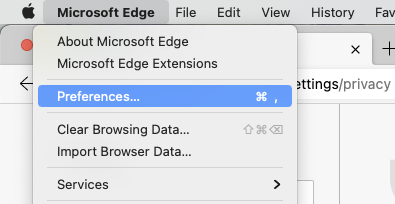
2. In the menu, click “Microsoft Edge” and then “Preferences…"
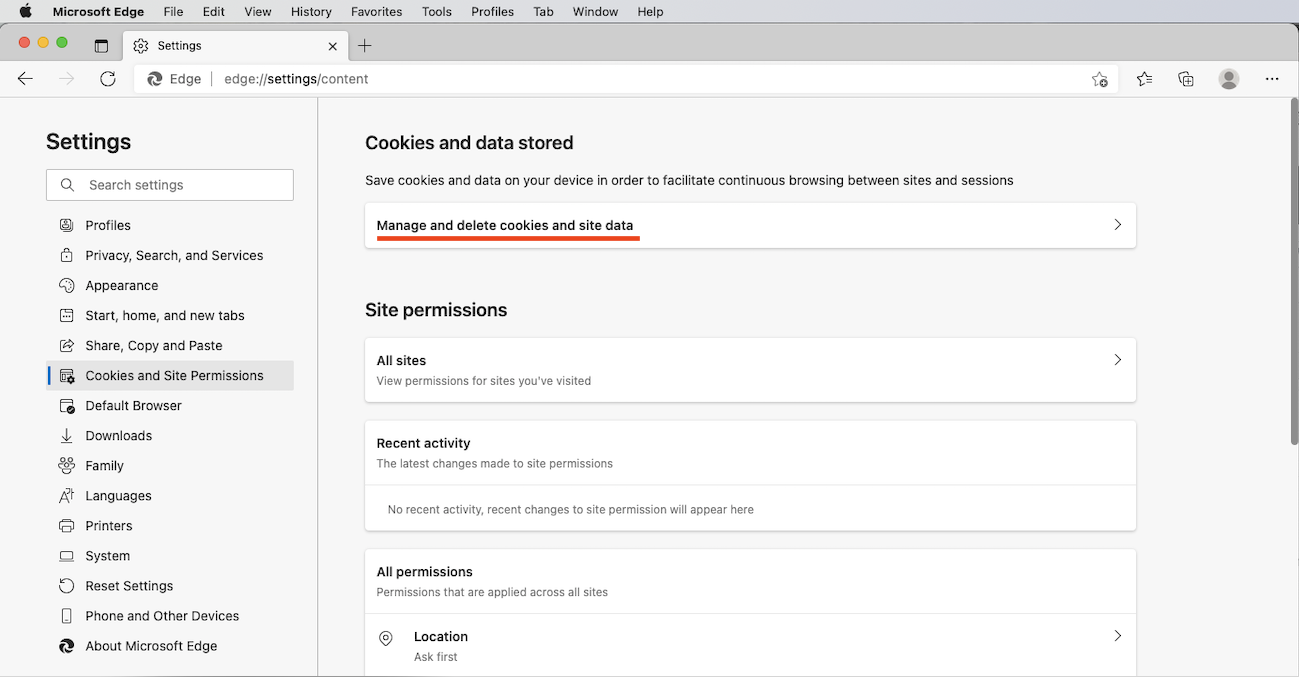
3. In the window that opens, click "Privacy, Search, and Services” and look for “Cookies and Site Permissions”.
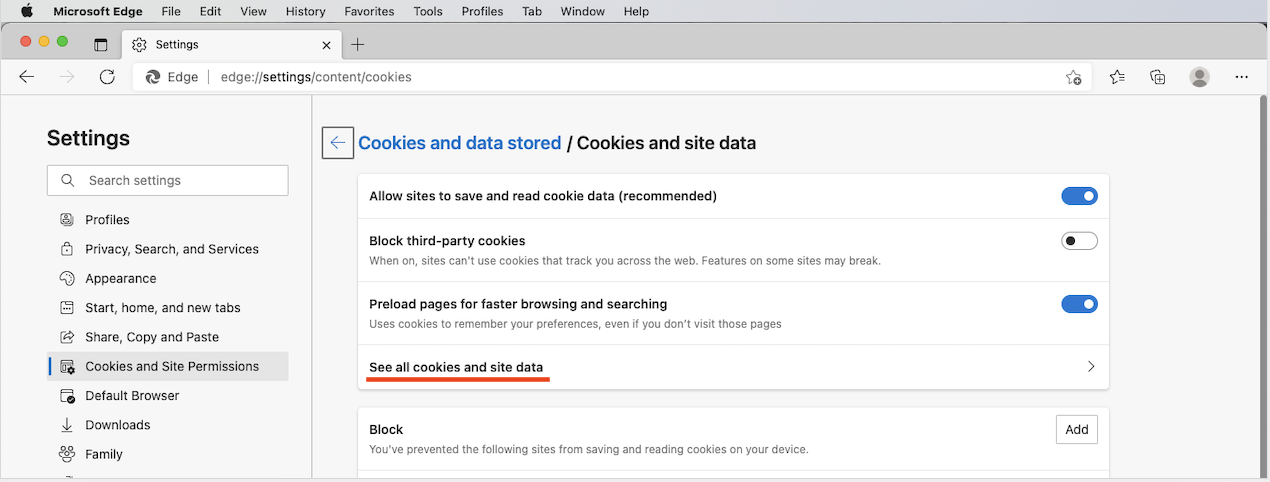
4. Next click “Manage and delete cookies and site data”
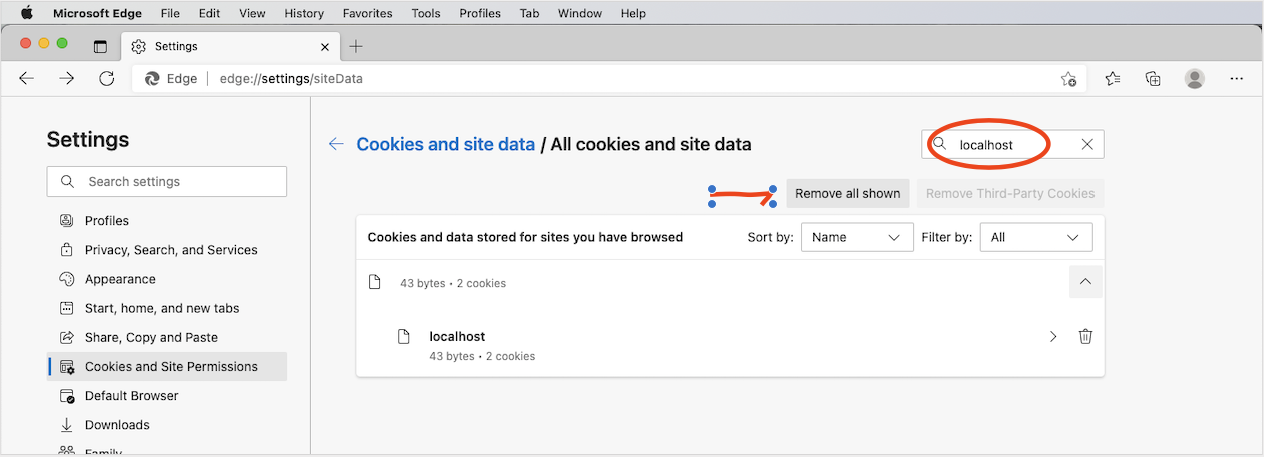
5. Next click “See all cookies and site data”
6. Finally, search for your LiveBy Local URL (in this case we are using localhost as an example, please use your own URL) and click the “Remove all shown” button.
7. Refresh your screen and attempt to sign in again.
If neither of these methods allows you to sign in, please feel free to contact support again and we can help walk you through the process.
Thank you and we apologize for the inconvenience.

Comments
0 comments
Article is closed for comments.